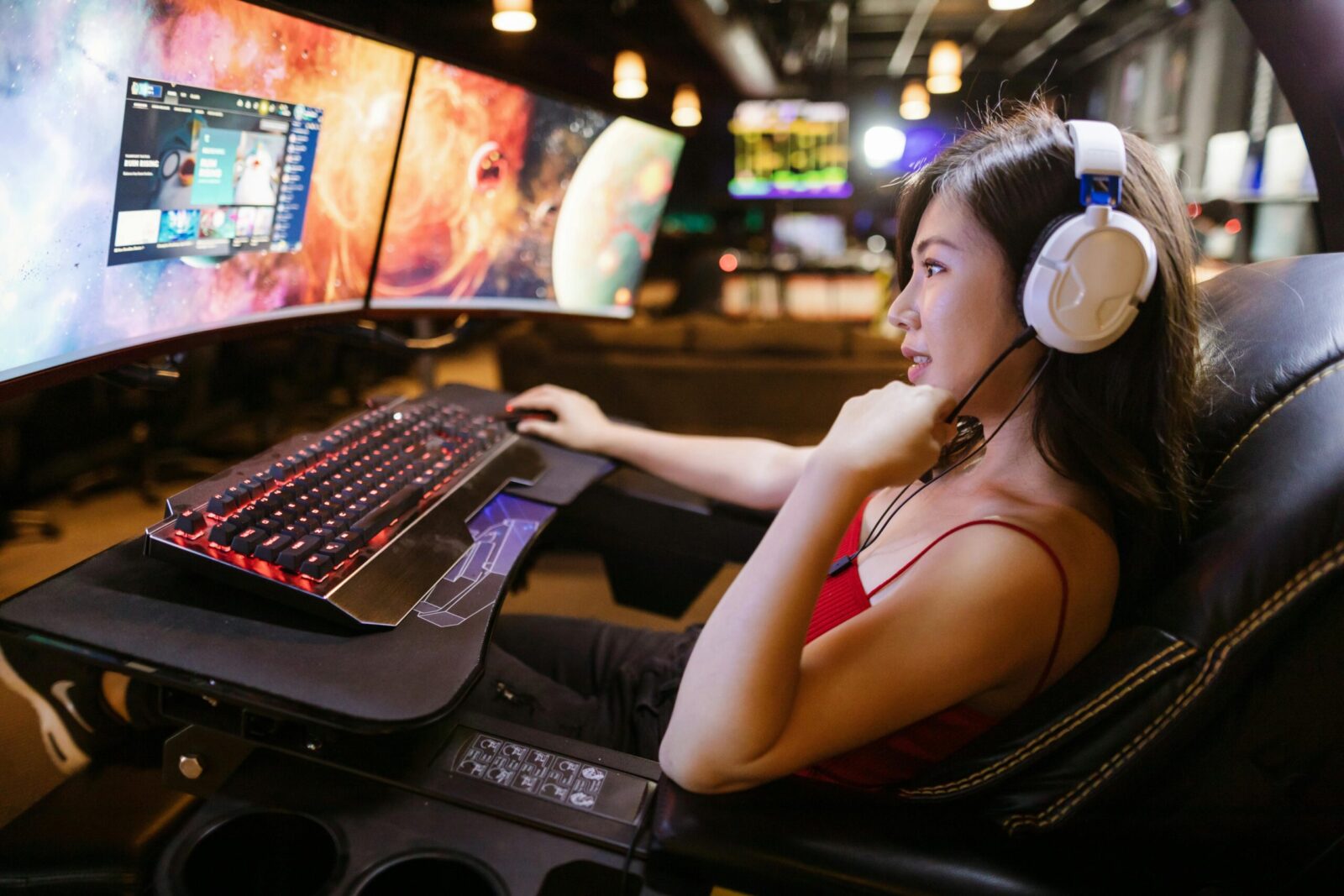
You don’t need a studio or a Hollywood budget to start your gaming channel, just the right pieces in the right order. In this guide, you’ll get the essential gear checklist and the settings that quietly separate clean, watchable streams from noisy, laggy ones. Consider it your fast‑track to going live with confidence, using gear that actually moves the needle instead of filling a shopping cart for no reason.
Define Your Platform And Budget
PC Versus Console: What Changes In Your Setup
Your streaming setup turns on one decision: are you gaming on PC or console? On PC, your GPU likely handles both gaming and encoding (with NVENC or similar), so you can go live with just software like OBS. On console, you’ll add a capture card to pull gameplay into your streaming PC or a laptop. Dual‑PC streaming exists, but it’s overkill for day one, get stable on one machine first.
PC streaming gives you granular control (scenes, overlays, chat bots) and easier upgrades. Console streaming is simpler to start, but you’ll rely more on a capture card and a computer for polished overlays and alerts. If you’re going for TikTok/shorts later, a PC‑based workflow makes clipping easier.
Starter Budget Tiers And What They Include
Entry (~$250–$500): a reliable USB mic, a 1080p webcam, soft lighting (even a single panel), and basic acoustic fixes (foam, rug, curtains). If you’re on console, add an external capture card to the mix.
Mid (~$700–$1,200): upgrade to a dynamic XLR mic + 2‑channel interface, dual monitor setup, better lighting (key + fill), and a 144 Hz gaming monitor. Optional: internal capture card for lower latency.
Pro‑leaning (~$1,500+): mirrorless camera with clean HDMI, audio interface with software routing, three‑point lighting, and a GPU strong enough to game and encode or a dedicated streaming PC.
Where To Spend First For The Biggest Impact
Audio and lighting. Viewers forgive average video if they can hear you clearly and see your face well lit. A $100–$150 USB dynamic mic and a soft key light often outperform expensive cameras in perceived quality. If you’re on console, the capture card is your other must‑have, no way around it.
Core Hardware: PC/Console, Capture, And Displays
Gaming PC Specs And GPU Priorities
For a single‑PC stream at 1080p60, aim for a modern 6–8 core CPU, 16–32 GB RAM, and an NVIDIA GPU with the latest NVENC encoder (RTX 20‑series or newer). NVENC takes encoding off the CPU with minimal gaming performance loss. AMD and Intel GPUs now offer solid hardware encoders too, especially for AV1 on newer cards: if your platform supports AV1, you’ll get better quality per bitrate. Lock your in‑game FPS to leave headroom for encoding and avoid microstutter.
If you’re tight on budget, prioritize GPU over CPU for streaming. A mid‑range card with a modern encoder plus good game settings beats a monster CPU with an old GPU.
Capture Cards: Internal vs. External And When You Need One
You need a capture card if you’re streaming from a console or doing dual‑PC streaming. Internal PCIe cards offer lower latency and cleaner passthrough (e.g., 1440p144 or 4K60 with HDR/VRR on higher‑end models). External USB cards are portable and fine for 1080p60: they’re plug‑and‑play but can add a touch more latency. Always check for a passthrough port that matches your display’s refresh rate so your gameplay stays snappy.
If you’re PC‑only and not using a camera that requires HDMI capture, skip the card entirely.
Monitors, Refresh Rates, And Dual‑Screen Workflow
A 144 Hz (or higher) main monitor keeps your gameplay fluid, while a cheaper 60–75 Hz secondary monitor hosts OBS, chat, alerts, and music. Put your chat and activity feed near your game window so your eyes don’t travel a mile mid‑fight. Calibrate brightness/contrast: crushed blacks are common on TN panels and can hide UI elements that your viewers see clearly in the capture.
Audio First: Microphones, Monitoring, And Control
USB vs. XLR Mics And Polar Patterns Explained
USB mics are the fastest way to clean audio, no extra gear, a single cable. XLR mics need an audio interface but scale better with upgrades. For untreated rooms, choose a dynamic mic: it rejects background noise and AC hum better than most condensers. Cardioid polar pattern is your default: it captures what’s in front and rejects behind. Supercardioid/hypercardioid narrow the pickup even more but demand better mic technique. Use a pop filter and position the mic 4–8 inches from your mouth, slightly off‑axis to tame plosives.
Interfaces, Mixers, And Basic Signal Chains
A simple 2‑in/2‑out audio interface gives you clean preamps, 48V phantom power (for condensers), and direct monitoring. Your basic chain is: mic → interface → OBS. Mixers add faders and submixes (game, chat, music, mic) so your stream hears something different from your headphones if you want. For most beginners, an interface plus software routing in OBS covers 95% of needs.
Gain staging matters: set your input so normal speaking peaks around –12 dB in OBS. Add a high‑pass filter (around 80–100 Hz), a light compressor (3:1), and a noise gate with a gentle threshold to control room noise without chopping syllables.
Headsets vs. Headphones + Mic And Monitoring Latency
Closed‑back headphones block keyboard clicks from bleeding into the mic better than open‑backs. A streamer‑style headset is fine, but standalone headphones plus a dedicated mic usually sound cleaner. Enable direct monitoring on your interface so you hear yourself with near‑zero latency. If you’re USB‑only, keep buffer sizes tight in your audio settings and avoid routing your mic through browser apps before OBS, that’s where latency creeps in.
Video And Lighting That Flatter You
Webcam vs. Mirrorless: Image Quality, Autofocus, And Capture Needs
A good 1080p webcam at 60 fps is enough to start. Look for reliable autofocus and low‑light performance. Mirrorless cameras level you up with bigger sensors, better color, and true depth blur, but you’ll need clean HDMI out, continuous power, and an HDMI capture device. If you go mirrorless, set shutter to roughly 1/120 for 60 fps, lock ISO as low as your lights allow, and use continuous AF with face detection.
Lighting Basics: Key, Fill, Back Light And Placement
Lighting beats lenses. A soft key light 30–45° off‑axis and slightly above eye level does most of the work. Add a dimmer fill on the opposite side to control contrast, and a subtle back light to separate you from the background. Soften with diffusion (softbox, umbrella, or a bounced LED off a wall). Avoid overhead ceiling lights, they cast raccoon‑eye shadows. Match color temperature across lights (around 5,600K for a daylight look) so skin tones don’t shift.
Backgrounds, Green Screens, And Room Aesthetics
Give yourself a bit of depth from the wall. A couple of practical lights or a small RGB accent creates mood without screaming “gamer cave.” Green screens are great for tight spaces, but they demand even lighting and slightly higher bitrate to keep edges clean. If you keep your room, tidy cables and hide clutter, viewers read your backdrop as part of your brand.
Software, Settings, And Connectivity
OBS/Streamlabs Essentials: Scenes, Sources, And Audio Routing
Create separate scenes for gameplay, starting soon, BRB, and chatting. Keep sources tidy: game capture, camera, mic, alerts, and browser sources for overlays. In Audio, map your mic to one channel and system/game to another, so you can mute or duck them independently. Use OBS’s filters for your mic (high‑pass, compressor, limiter, gate) and test with recordings before a real stream.
Bitrate, Encoder, And Resolution Settings For Smooth Streams
For Twitch, 1080p60 is typically capped at around 6,000 Kbps: many streamers use 936p60 or 900p60 to preserve motion clarity at that bitrate. On YouTube, you can push higher (8–12 Mbps for 1080p60) if your upload allows. Encoder: use NVENC (new) on NVIDIA, AMF on AMD, or x264 if your CPU has lots of headroom. Set CBR with a 2‑second keyframe interval and “high” profile. If you have AV1 support and your platform accepts it, you’ll get better quality at the same bitrate.
Overlays, Alerts, And Chat Bots Without Clutter
Less is more. Keep your camera frame clean, alerts audible but short, and overlays minimal. A single event list, recent follower, and alert box is enough. Use a chatbot for links, shoutouts, timers, and moderation: configure cooldowns so chat doesn’t get spammy.
Internet Speed, Wired Networking, And Router QoS
You want at least 1.5x your streaming bitrate in consistent upload speed. So for 6,000 Kbps, aim for 10 Mbps upload or better. Go wired Ethernet, Wi‑Fi is a gamble during peak hours. Enable QoS to prioritize your PC’s upstream traffic and disable bandwidth‑hogging backups or downloads before you go live. If your ISP is unstable, consider a secondary connection or a 5G hotspot as a last‑resort backup.
Upgrade Paths And Troubleshooting Basics
What To Upgrade Next: Camera, Mic, Lighting, Or GPU
If your stream already sounds clean and is stable, upgrade in this order:
- Lighting → Mic → Camera → GPU/capture
Lighting upgrades immediately improve every camera. Then a better mic/interface combo smooths your voice. Only after that should you jump to a mirrorless camera, and finally bump the GPU or capture card when you hit resolution/refresh ceilings.
Noise, Echo, And Ground Loop Fixes
Room echo? Add rugs, curtains, and a bookshelf, soft, irregular surfaces beat foam squares alone. Mechanical noise? Move the PC off‑desk and use rubber feet for the mic arm. For keyboard clacks, angle the mic away and use a dynamic capsule with a tight gate.
A constant low hum often means a ground loop between your PC, capture card, and monitors. Use balanced cables where possible, put audio gear on the same power strip, or add an inexpensive ground‑loop isolator on the offending line. USB whine? Try a powered USB hub or different port away from high‑draw devices.
Stability Tips: Thermal, Power, And Cable Management
Watch temps. Cap your in‑game FPS, enable a reasonable fan curve, and clean dust filters monthly. Power issues cause random crashes: a reliable PSU and a small UPS protect against brownouts. Route HDMI and USB cables away from power bricks to reduce interference, label both ends, and leave slack for desk movement so you don’t yank ports mid‑stream.
Streamer Gear: Frequently Asked Questions
What essential gear do I need to start my gaming channel?
Start lean: a clear USB dynamic mic, a 1080p/60 webcam, a soft key light, and OBS. Console streamers also need a capture card. Add basic acoustic fixes (rug, curtains) and a second monitor for chat/OBS. This essential gear delivers clean audio, flattering light, and stable capture on day one.
What bitrate, encoder, and resolution settings should I use for Twitch and YouTube?
For Twitch, target 6,000 Kbps with 936p60–1080p60, CBR, 2‑second keyframe, and NVENC (new), AMF, or x264 if CPU permits. For YouTube, use 8–12 Mbps at 1080p60. If available, AV1 improves quality at the same bitrate. Keep profile “high” and test recordings before going live.
Where should I spend first for the biggest quality boost in my streaming setup?
Prioritize audio and lighting. A $100–$150 USB dynamic mic plus a soft key light usually beats pricey cameras in perceived quality. Position the mic 4–8 inches off‑axis with a pop filter, and use diffusion on your light. These essential gear upgrades make streams look cleaner and sound professional.
Can I start streaming on a laptop, and what specs are enough?
Yes. Aim for a 6‑8 core CPU, 16 GB RAM, and a modern NVIDIA/AMD/Intel GPU with hardware encoding (NVENC/AV1/AMF). Use 1080p60 or 900p/936p60, NVENC/AV1 if supported, and cap in‑game FPS for headroom. Prefer wired Ethernet, and use a USB dynamic mic to reduce fan and room noise.
How often should I stream to grow a new gaming channel, and what schedule works?
Consistency beats volume. Start with 2–3 scheduled streams per week, 2–4 hours each, at the same times. Reserve off‑days for shorts/clips to drive discovery. Announce schedules on socials and keep overlays/alerts minimal so content shines. Review VODs weekly to refine pacing, audio balance, and scenes.
No responses yet